DOCS
Edit with AI over MCP
ShootClip ships with a built-in AI agent connected to the editor through MCP (Model Context Protocol). Ask it to cut silence, add captions, color grade, arrange your timeline, or export — it edits the real project, live. Setup takes under a minute.
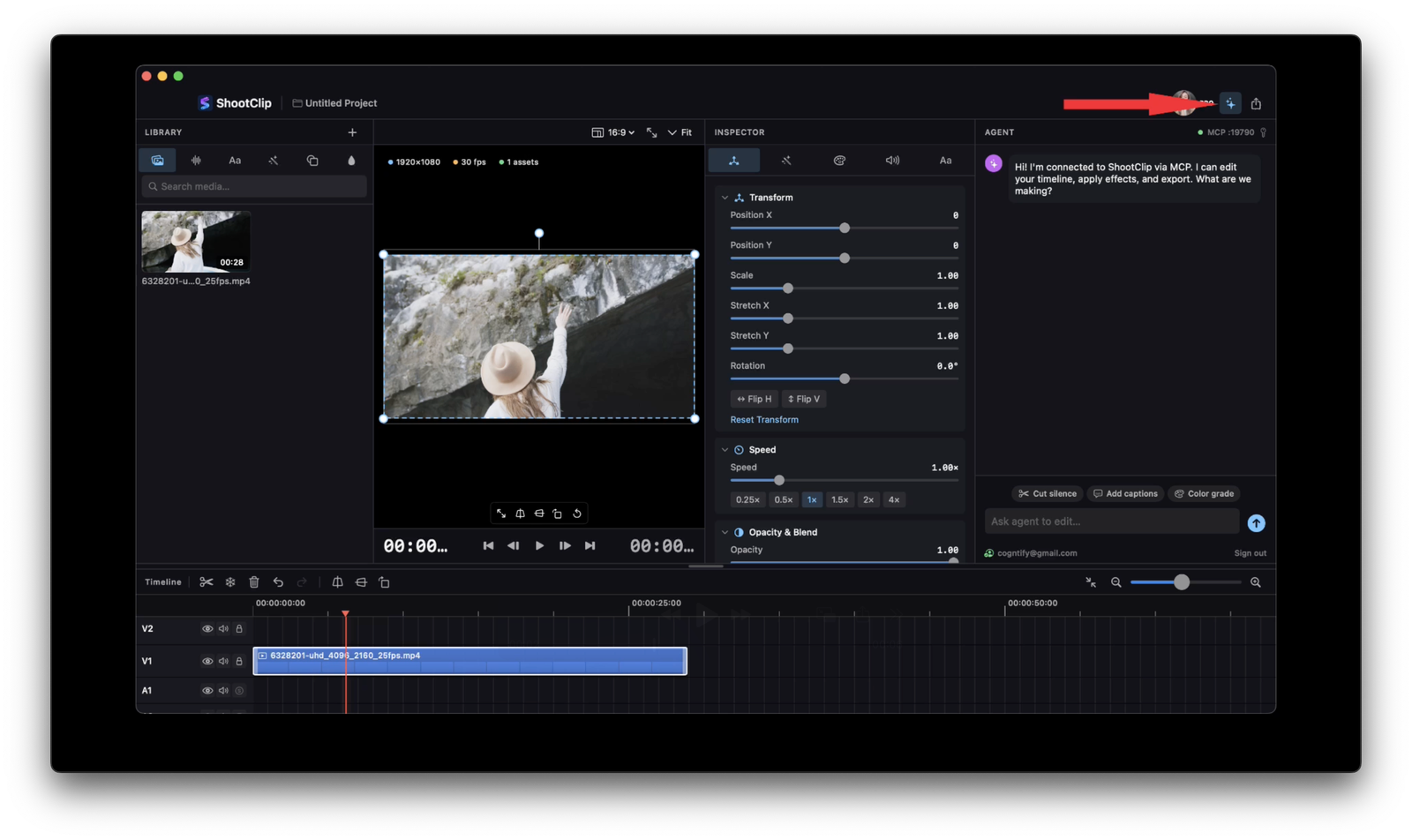
STEP 1Open the chat
Click the ✦ chat button in the top-right corner of the toolbar. The Agent panel opens on the right — the green MCP :19790 dot means the agent is connected to your editor.
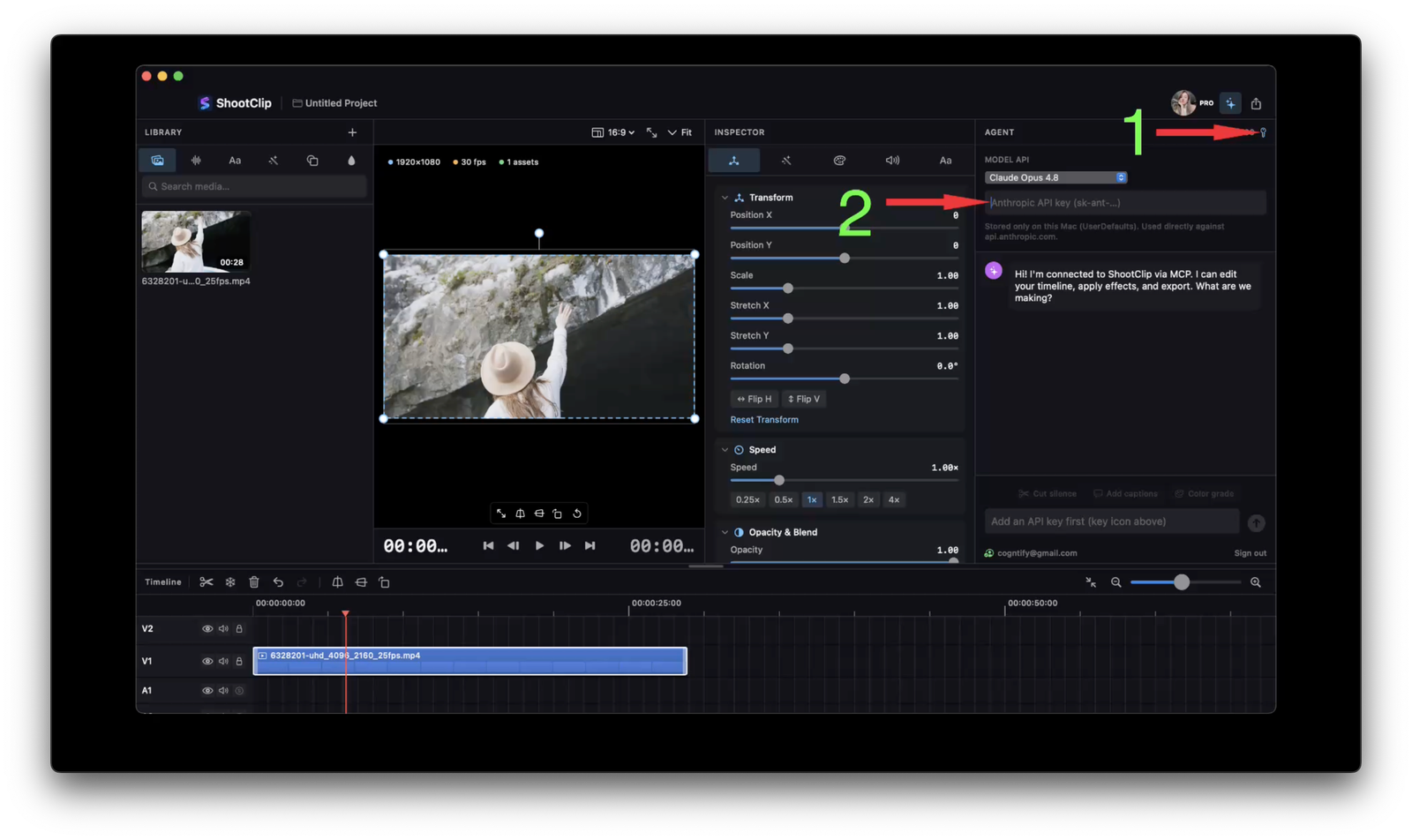
STEP 2Add your API key & pick a model
Click the key icon at the top of the Agent panel, paste your Anthropic API key (sk-ant-…), and choose a model — that’s it. Your key is stored only on your Mac and is used directly against api.anthropic.com; it never touches ShootClip servers.
STEP 3Ask away
Type what you want in the chat — or use the one-click actions like Cut silence, Add captions, and Color grade. The agent imports media, edits the timeline, applies effects, and exports on your behalf. Try: “Speed up the quiet parts and add captions” or “Blur the license plate from 0:12 to 0:20”.
Good to know
Get an API key from console.anthropic.com. Usage is billed by Anthropic to your own key — ShootClip adds nothing on top. The MCP server listens locally on 127.0.0.1:19790, so external MCP clients on the same Mac can connect to your editor too.