DOCS
Install ShootClip on your Mac
ShootClip is distributed directly from this site rather than the Mac App Store, so the first launch takes a couple of extra clicks while macOS Gatekeeper checks the app. It’s a one-time process — after that, ShootClip opens like any other app. Here are the five steps.
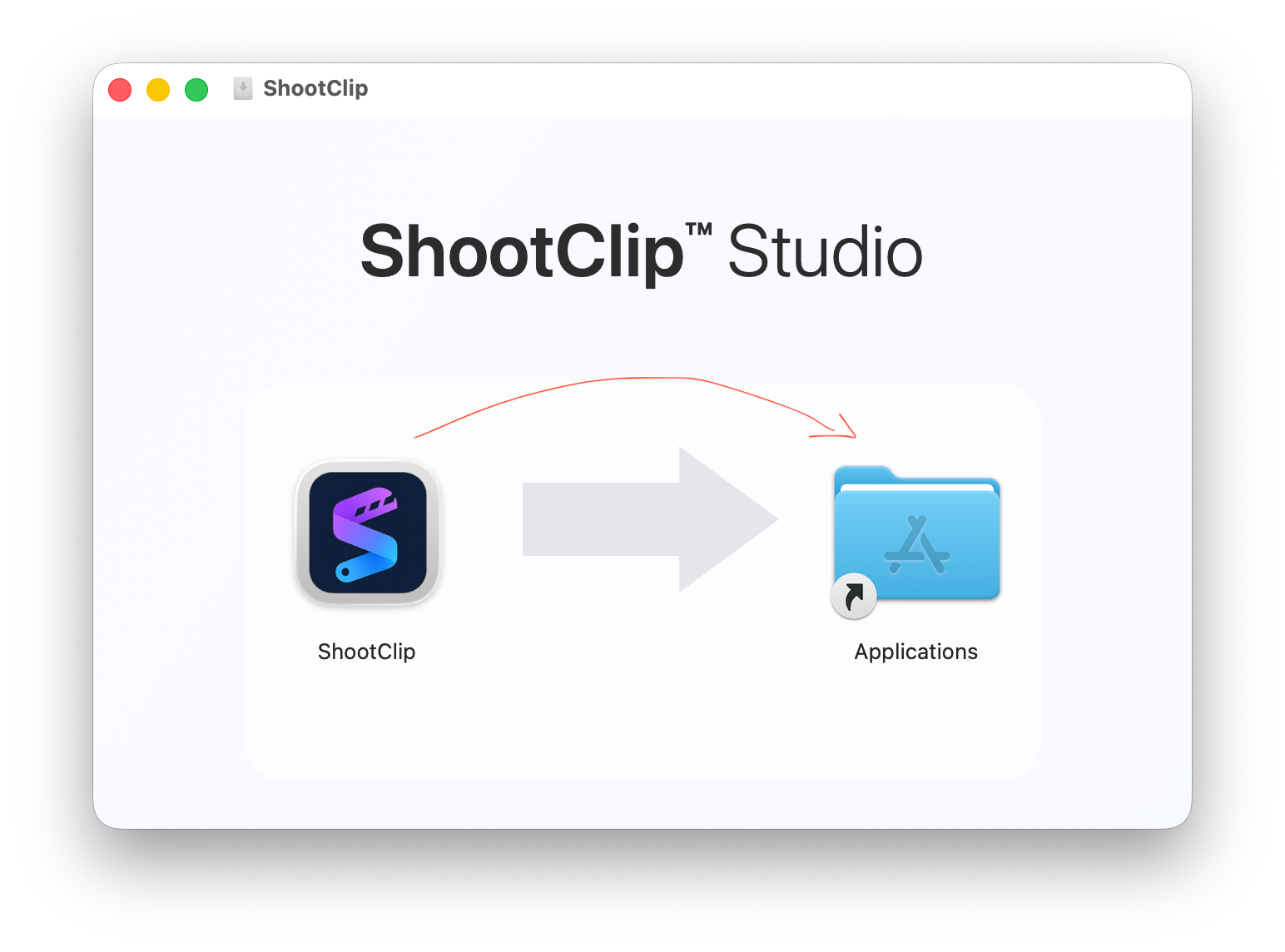
STEP 1Drag ShootClip into Applications
Open the downloaded ShootClip.dmg and drag the ShootClip icon into the Applications folder. Then open ShootClip from Applications (or Launchpad).
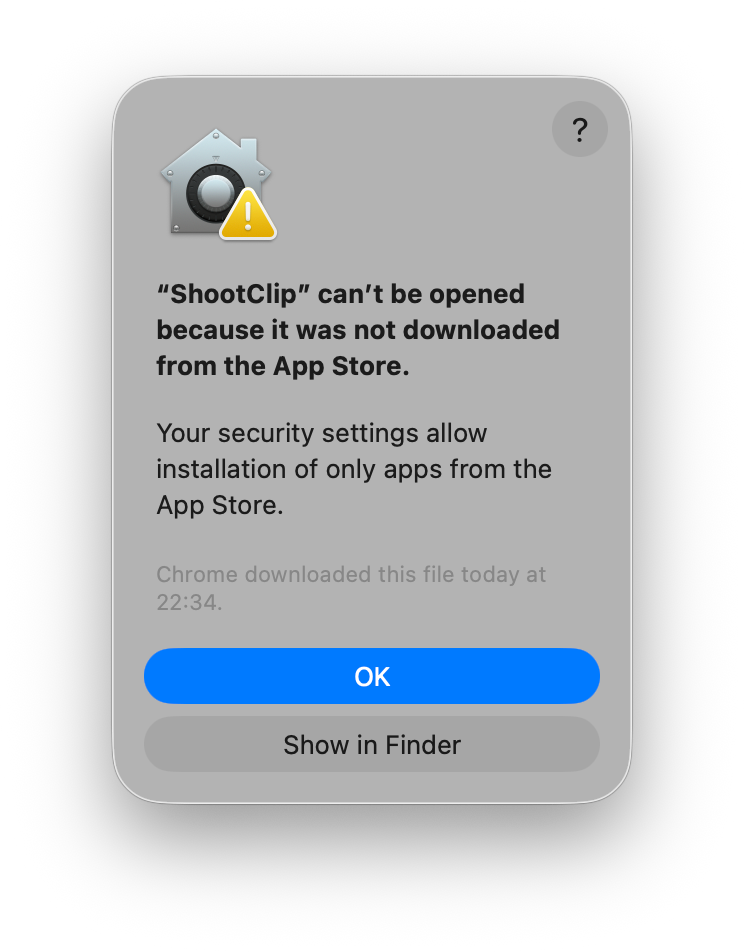
STEP 2A security warning appears — that’s expected
On first launch, macOS shows “ShootClip can’t be opened because it was not downloaded from the App Store.” This is the standard Gatekeeper notice for any app distributed outside the App Store — nothing is wrong with the app or your Mac. Click OK to dismiss it.
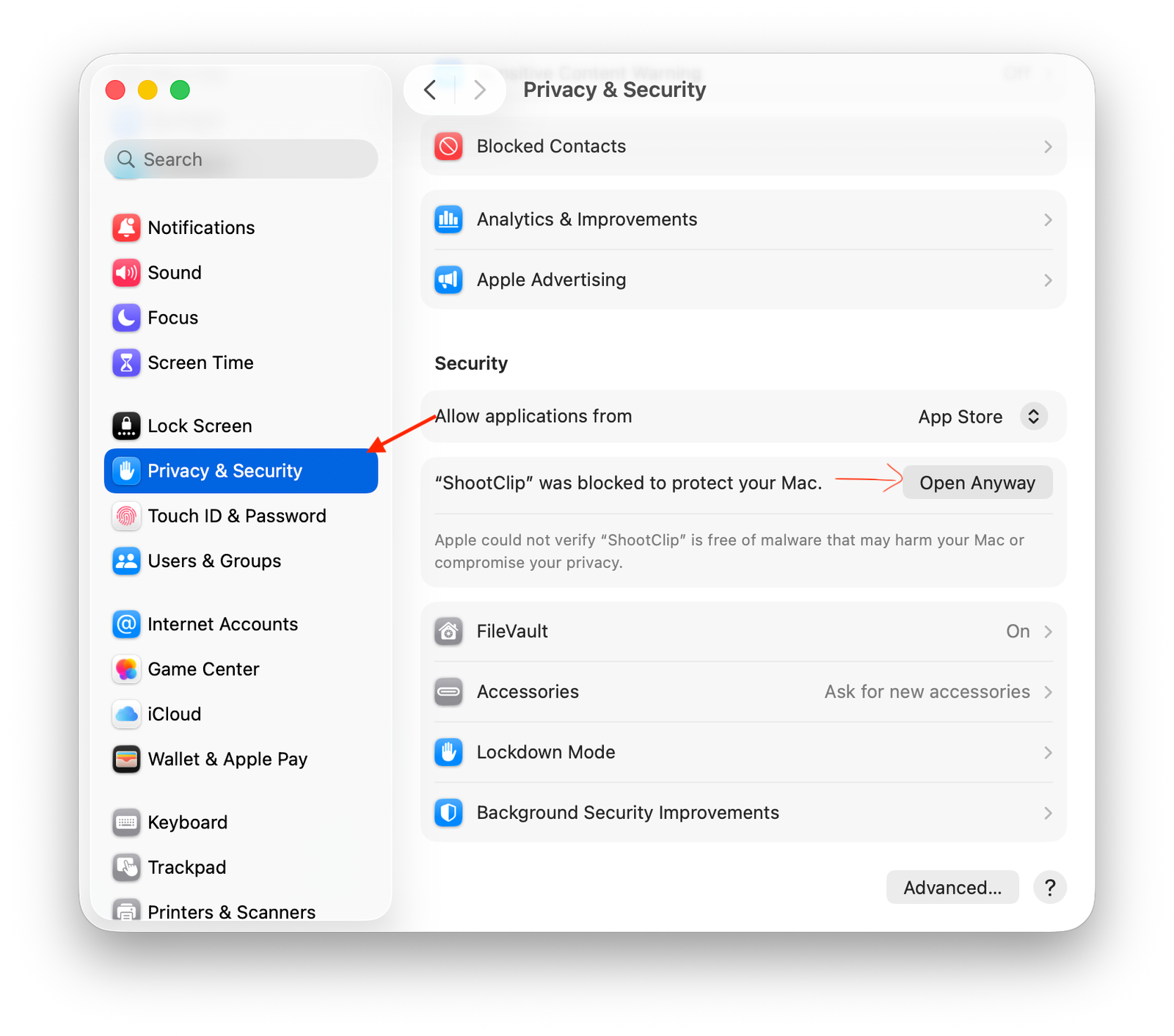
STEP 3Allow it in Privacy & Security
Open System Settings → Privacy & Security and scroll down to the Security section. You’ll see “ShootClip was blocked to protect your Mac” — click Open Anyway.
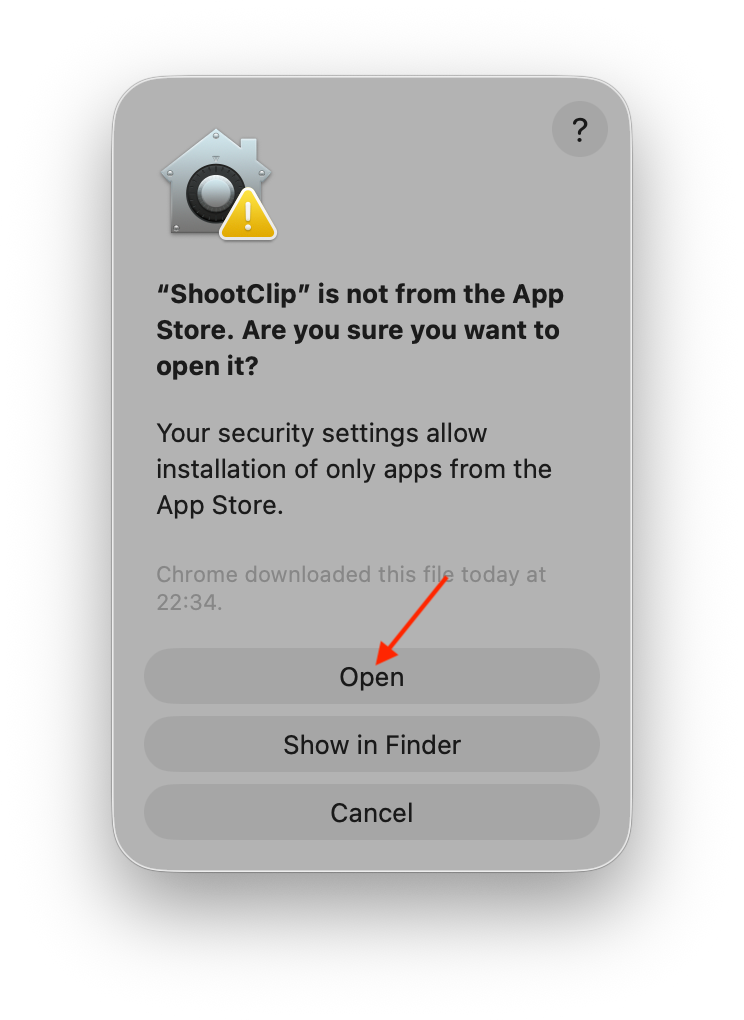
STEP 4Confirm by clicking Open
macOS asks once more whether you’re sure you want to open ShootClip. Click Open.
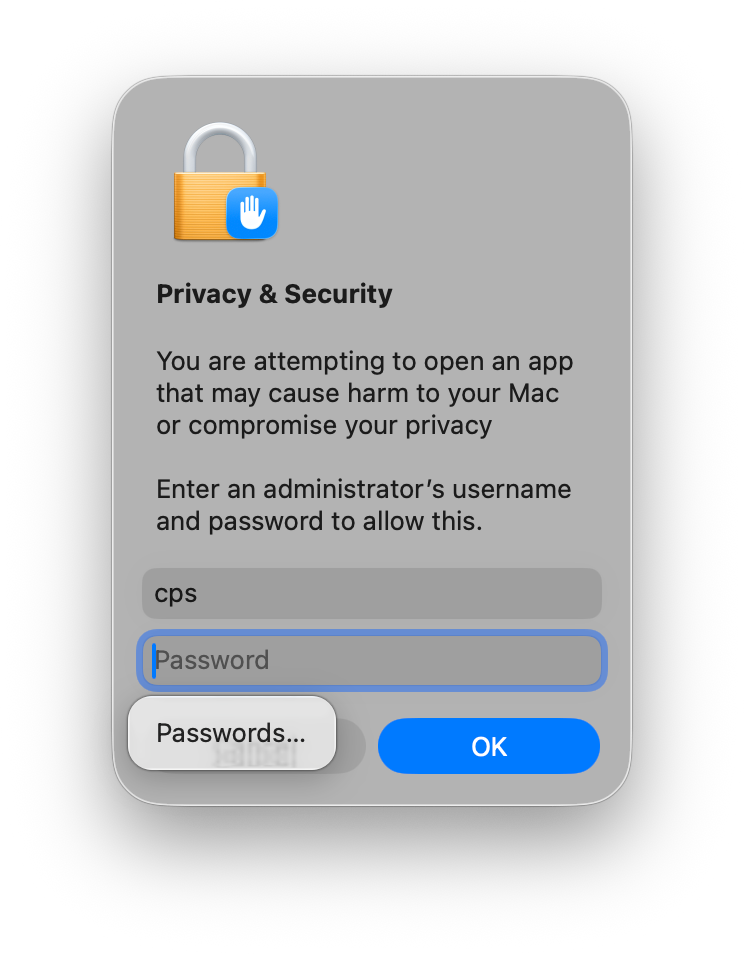
STEP 5Enter your Mac password
Finally, enter your Mac’s administrator password (or use Touch ID) to confirm, and click OK. That’s it — ShootClip launches, and from now on it opens normally with a single click.
Why does this happen?
macOS shows this warning for every app downloaded outside the Mac App Store, regardless of the developer. Your download comes straight from shootclip.com over HTTPS. Once ShootClip is set up, you can read the MCP docs to start editing with AI, or reach us anytime at support@shootclip.com.